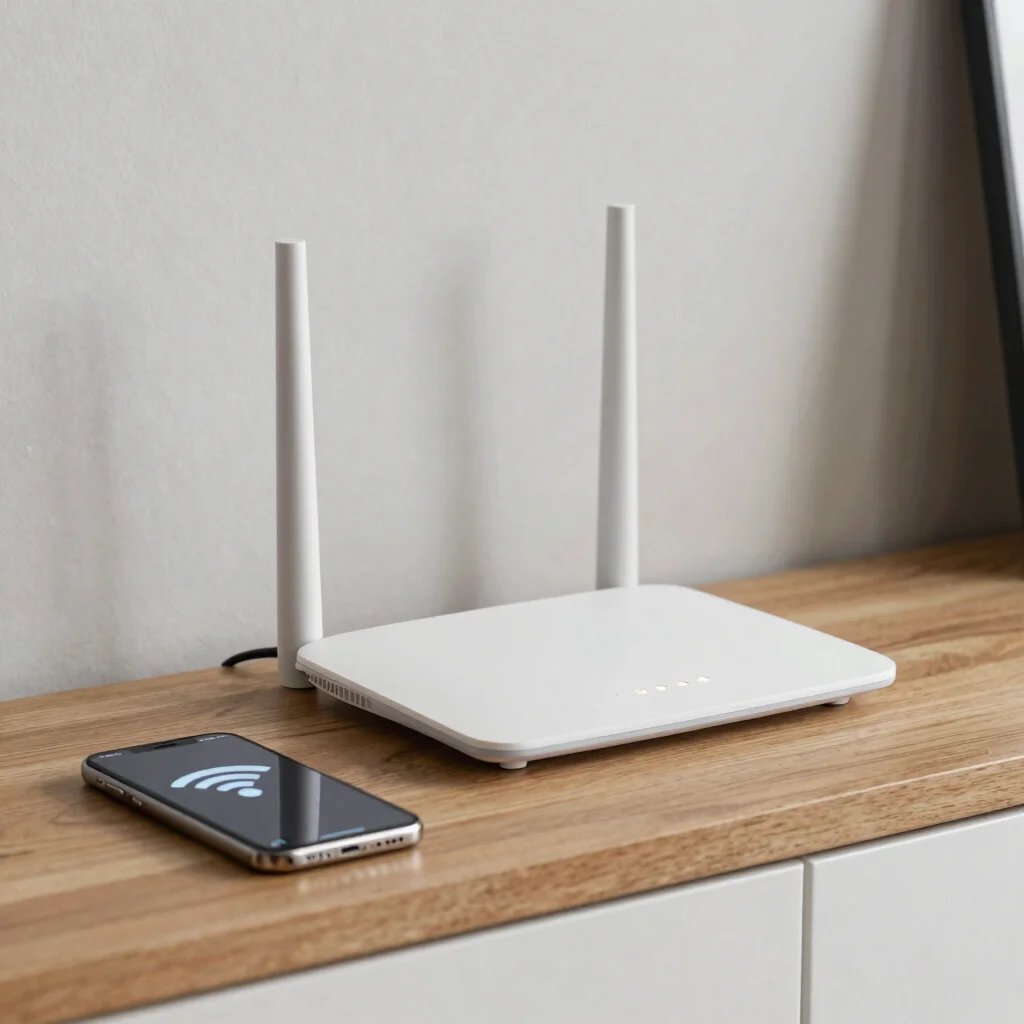
A full Wi-Fi icon can be misleading: it means your device is connected to the wireless network, not necessarily to the internet. Before resetting anything, find out whether the failure affects one device or everything in the home. That small check points you toward the right fix.
Check the scope first
Open the same website on another phone or computer connected to the same Wi-Fi. If that device works, focus on the original device; if neither works, look at the router or internet service. Also try a different website or app, since one service can be down while the rest of your connection is fine.
Try the low-risk fixes
On the affected device, turn Wi-Fi off and back on, then check that airplane mode is off. If only one app is failing, close and reopen it rather than changing network settings. When every device is offline, check your provider’s outage page using mobile data if available.
If there is no reported outage, restart the router. For a separate modem and router, power-cycle both, then give them time to reconnect before testing again. Avoid pressing the router’s factory-reset button: that can erase network settings and create a larger setup job.
Change settings only with a reason
If one device still cannot browse, temporarily pause a VPN or security app and test again; restore it if that makes no difference. Forgetting the Wi-Fi network and joining again can help when its saved connection details are stale, but make sure you know the password first. Save advanced changes such as DNS edits for later, after simpler checks have ruled out an outage or router issue.
Keep track of what you tested and which devices were affected. If the connection remains down across the home after a restart, that gives your internet provider a more useful starting point than simply saying Wi-Fi is broken.